# GitHub & GitHub Copilot Access
A guide for obtaining GitHub and GitHub Copilot access
# GitHub Enterprise Access
Guide to creating a EY GitHub Enterprise account with organization access
# Instructions To Raise GitHub Access
**PREREQUISITE:** To provide access to EY GitHub, a GitHub EMU admin is required (Needs to be part of Administrator User Group).
The steps that are required to be performed by (Admin) or (User) is mentioned in the header.
- #### **Navigate to EY CodeHub Portal (Admin)**
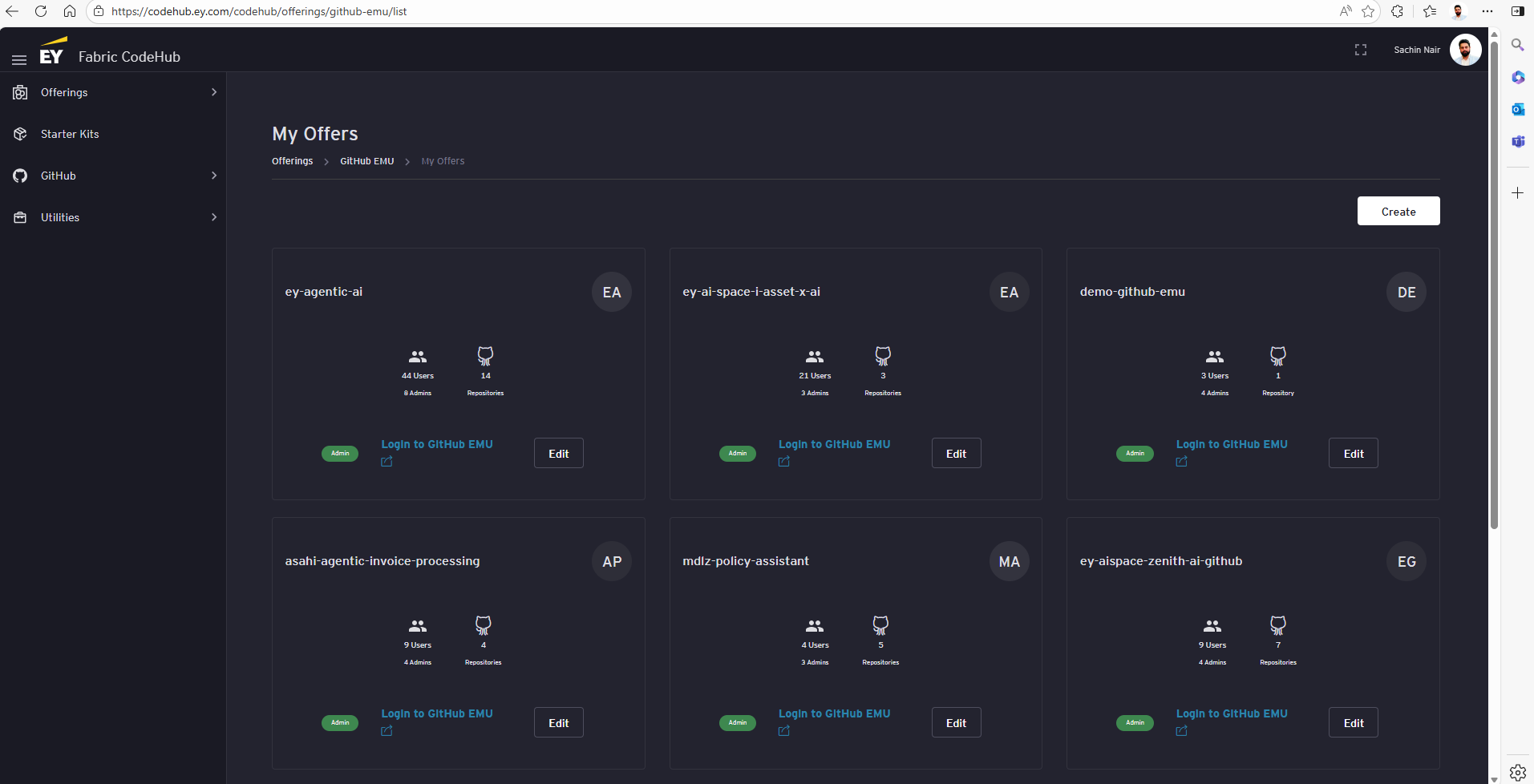
**LINK:** [GitHub EMU Offering](https://codehub.ey.com/codehub/offerings/github-emu/list)
Navigate to the above link. The webpage should automatically login using the EY Single Sign-On (SSO).
[](https://ey-bookstack-documentation.kindcoast-f0886029.eastus.azurecontainerapps.io/uploads/images/gallery/2026-04/73nimage.png)
- #### **Navigate to ‘Development Team’ page (Admin)**
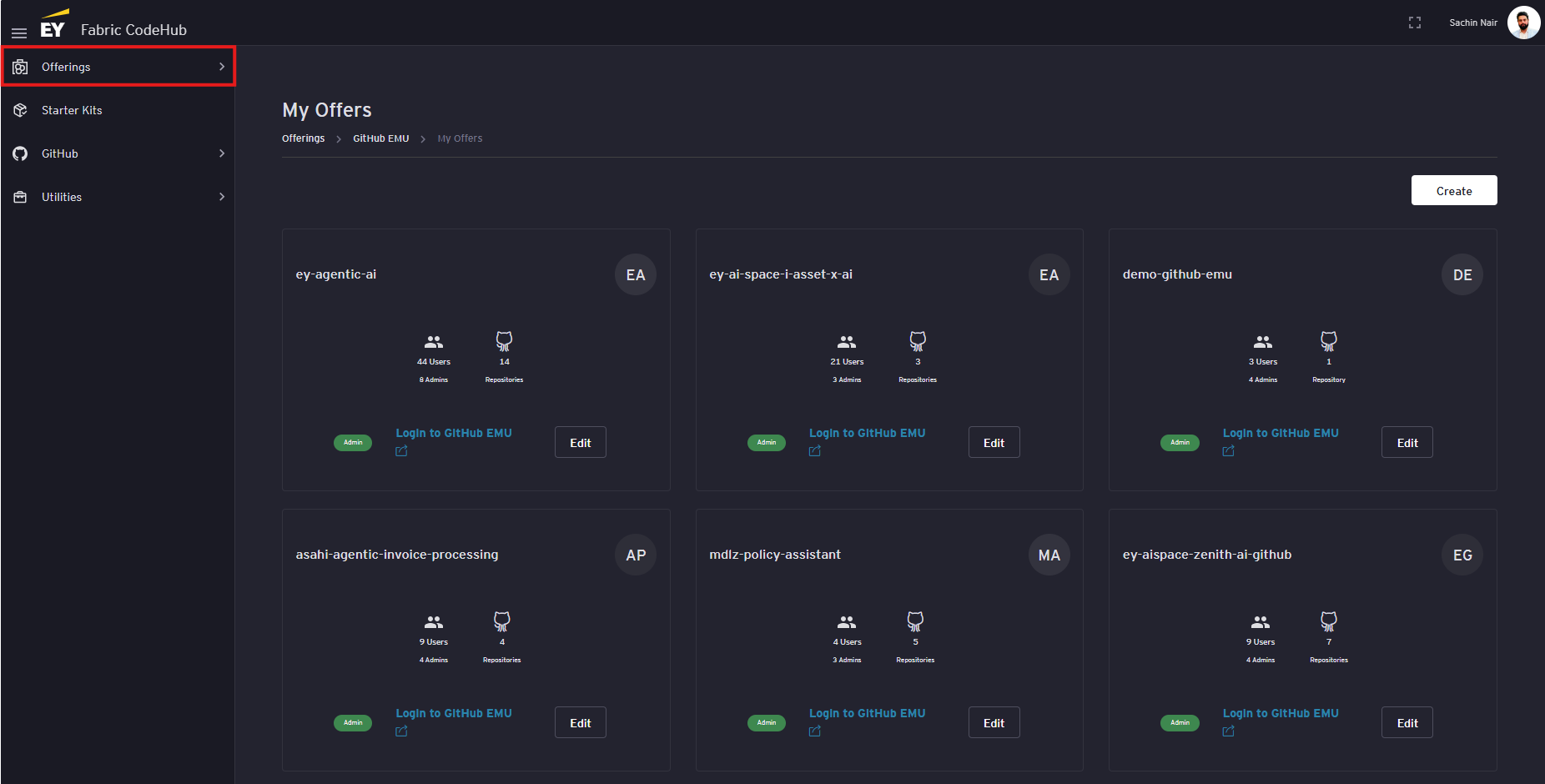
Expand the ‘Offerings’ section by clicking on ‘Offerings’ drop down on the left side
[](https://ey-bookstack-documentation.kindcoast-f0886029.eastus.azurecontainerapps.io/uploads/images/gallery/2026-04/7skimage.png)
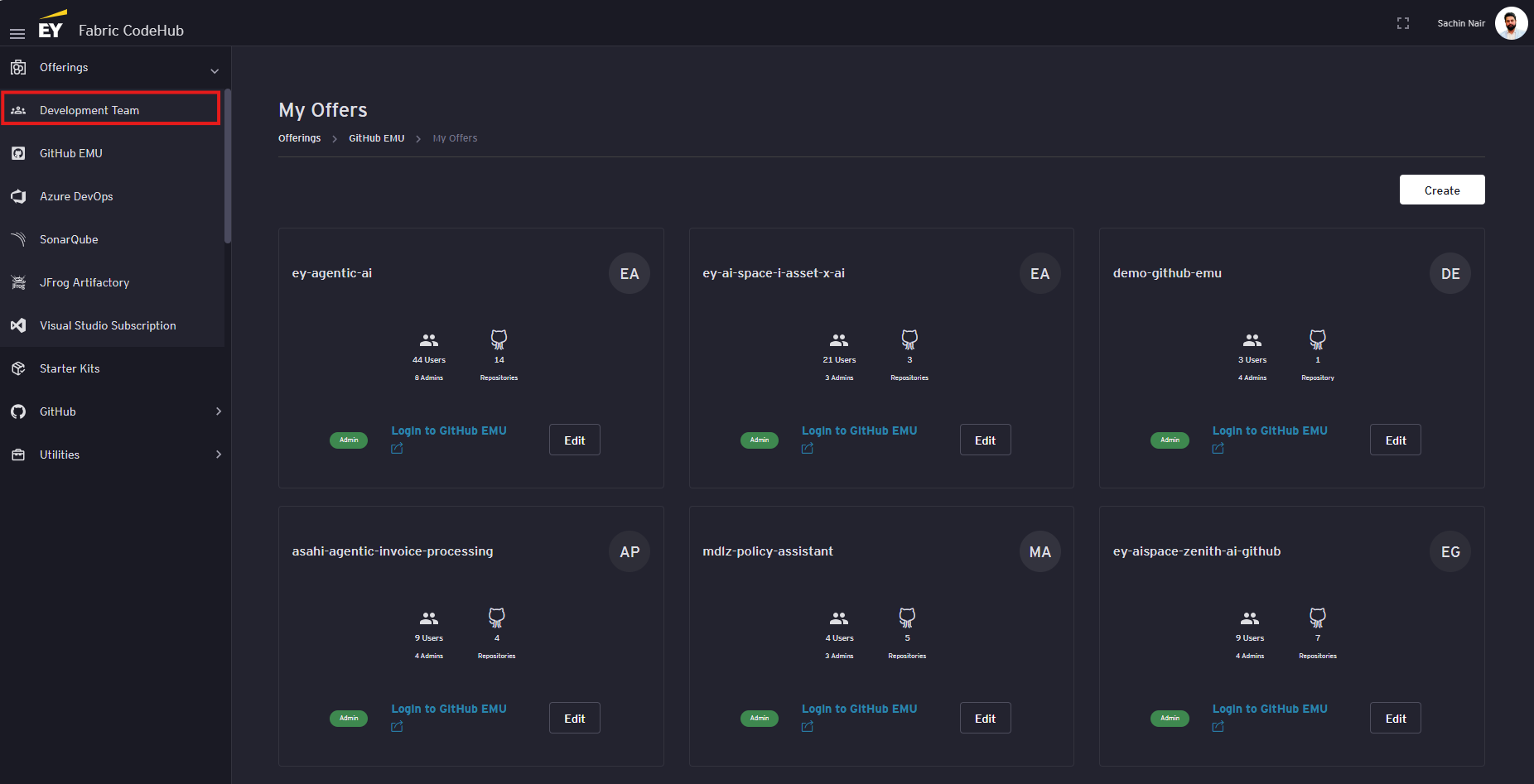
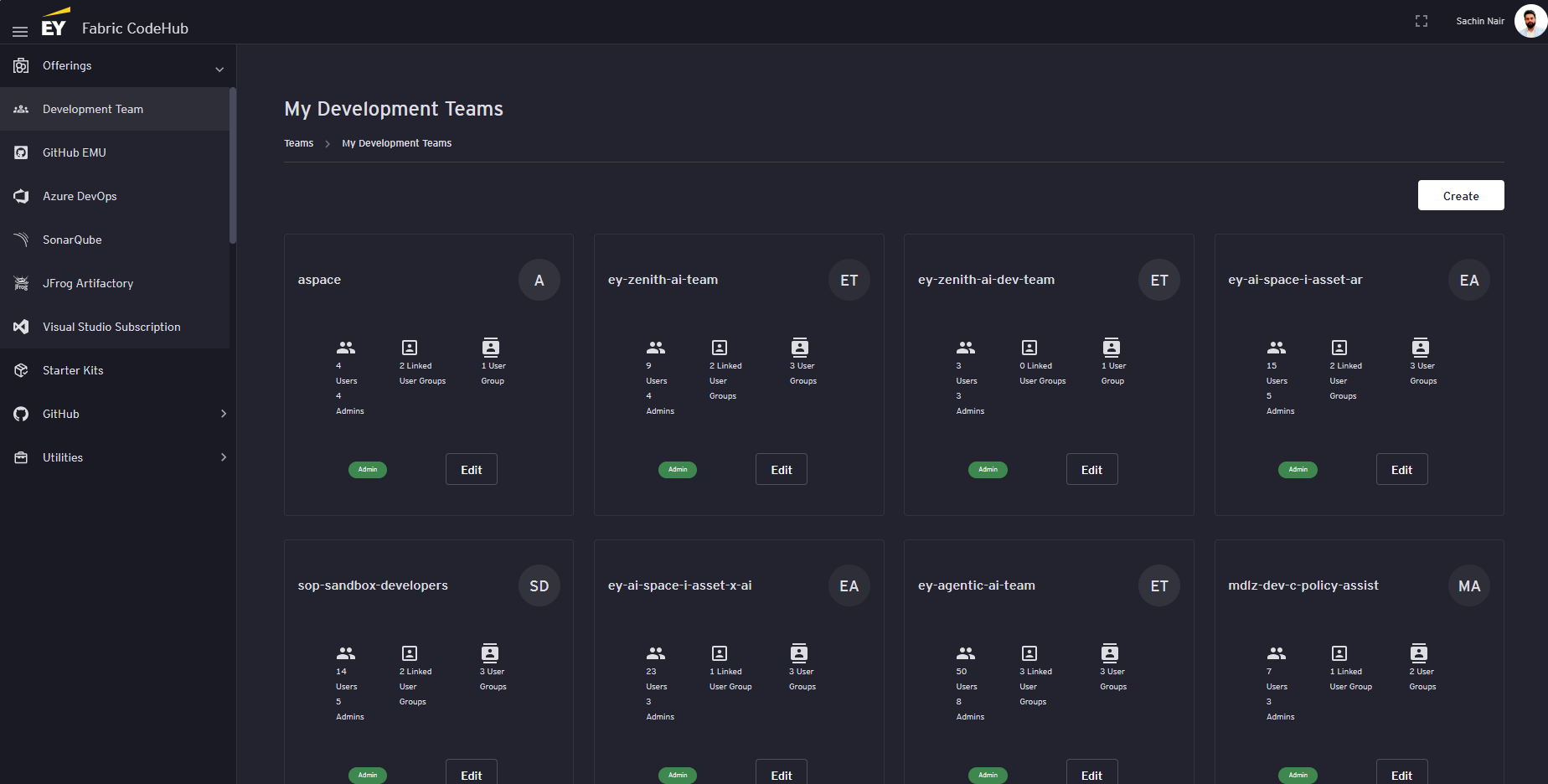
Click on the ‘Development Team’ tab under the ‘Offerings’ section. This should display the list of Development Teams.
[](https://ey-bookstack-documentation.kindcoast-f0886029.eastus.azurecontainerapps.io/uploads/images/gallery/2026-04/8p4image.png)
[](https://ey-bookstack-documentation.kindcoast-f0886029.eastus.azurecontainerapps.io/uploads/images/gallery/2026-04/7h0image.png)
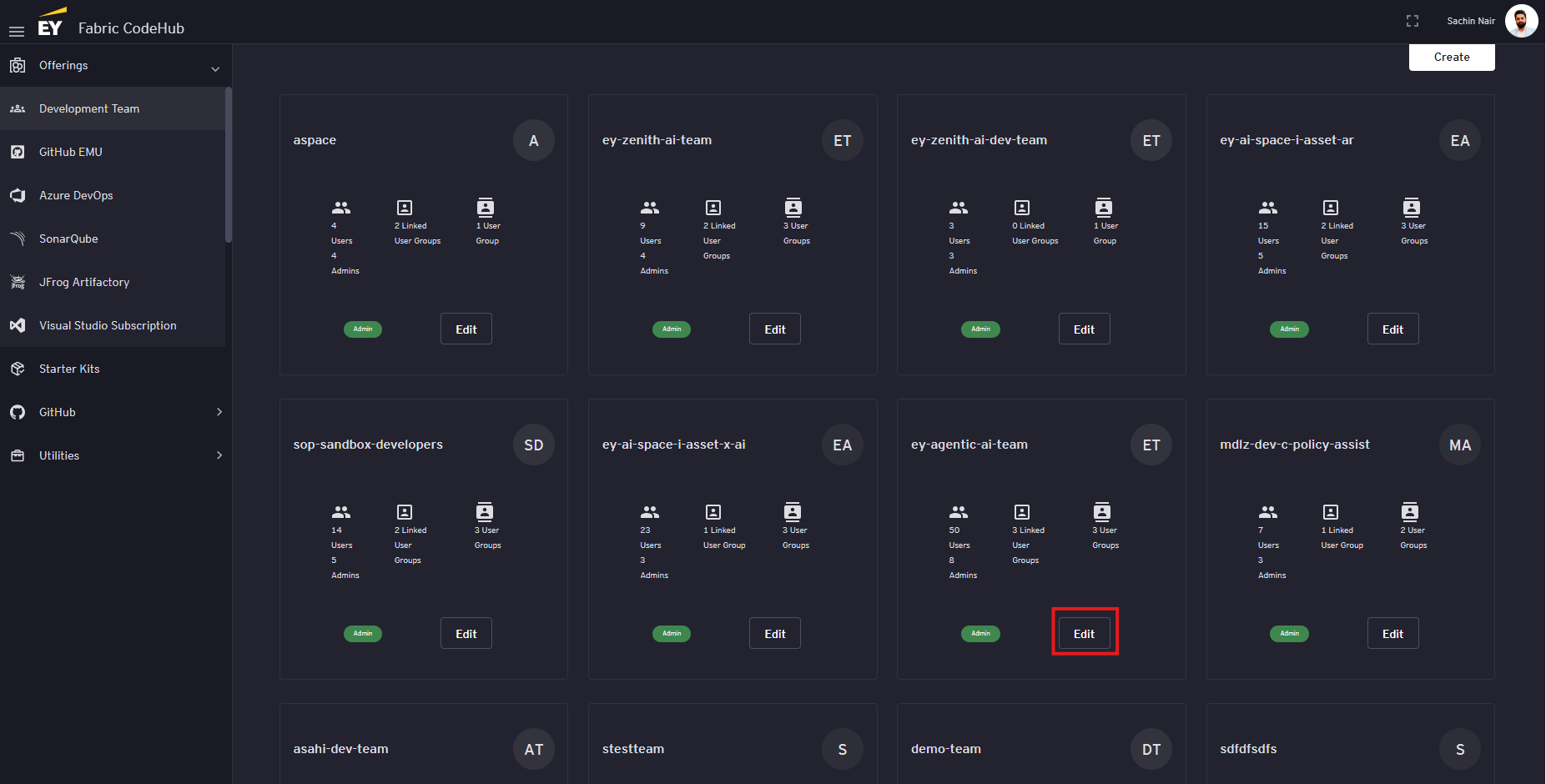
- #### **Add the user to a Development Team (Admin)**
**Click on the 'Edit' button on the development team the user needs to be added to.**
[](https://ey-bookstack-documentation.kindcoast-f0886029.eastus.azurecontainerapps.io/uploads/images/gallery/2026-04/LCQimage.png)
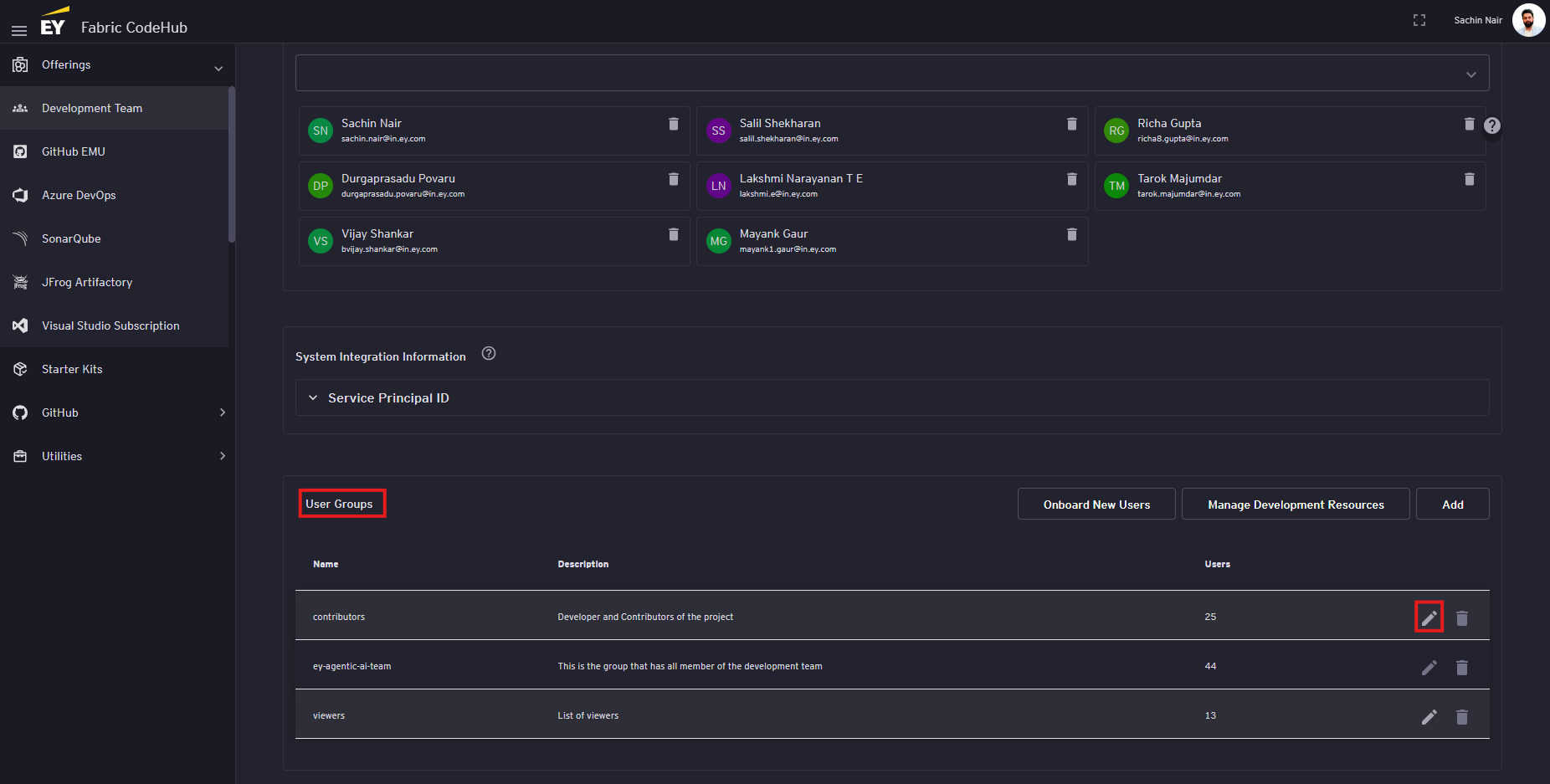
On the edit page, scroll to the 'User Groups' section and click on the 'edit' button next to the user group the user needs to be added to.
[](https://ey-bookstack-documentation.kindcoast-f0886029.eastus.azurecontainerapps.io/uploads/images/gallery/2026-04/Ny1image.png)
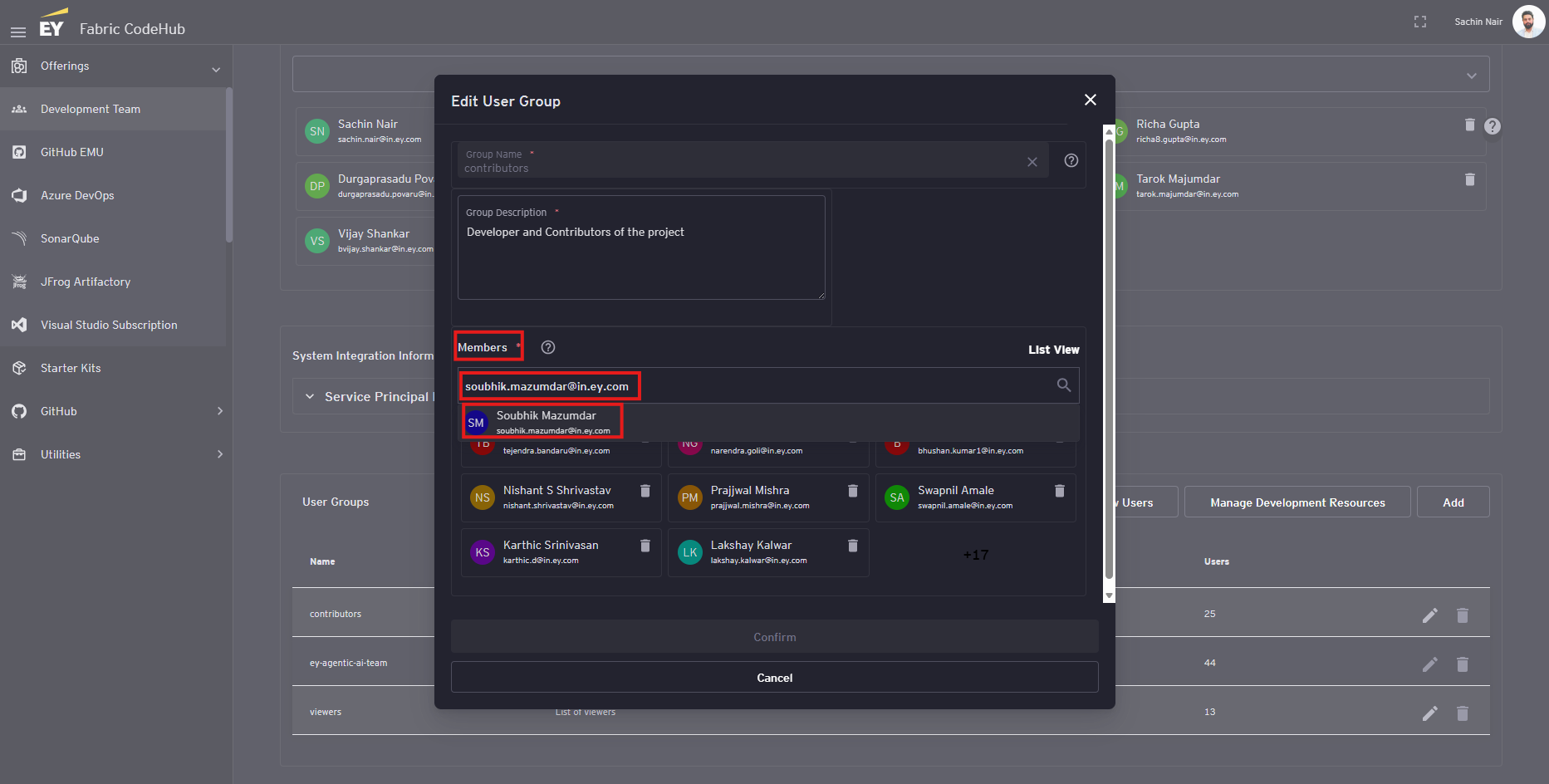
On the edit popup, under the 'Members' section, enter the email id of the user in the search section and select the user from the auto populated dropdown that appears
[](https://ey-bookstack-documentation.kindcoast-f0886029.eastus.azurecontainerapps.io/uploads/images/gallery/2026-04/5zWimage.png)
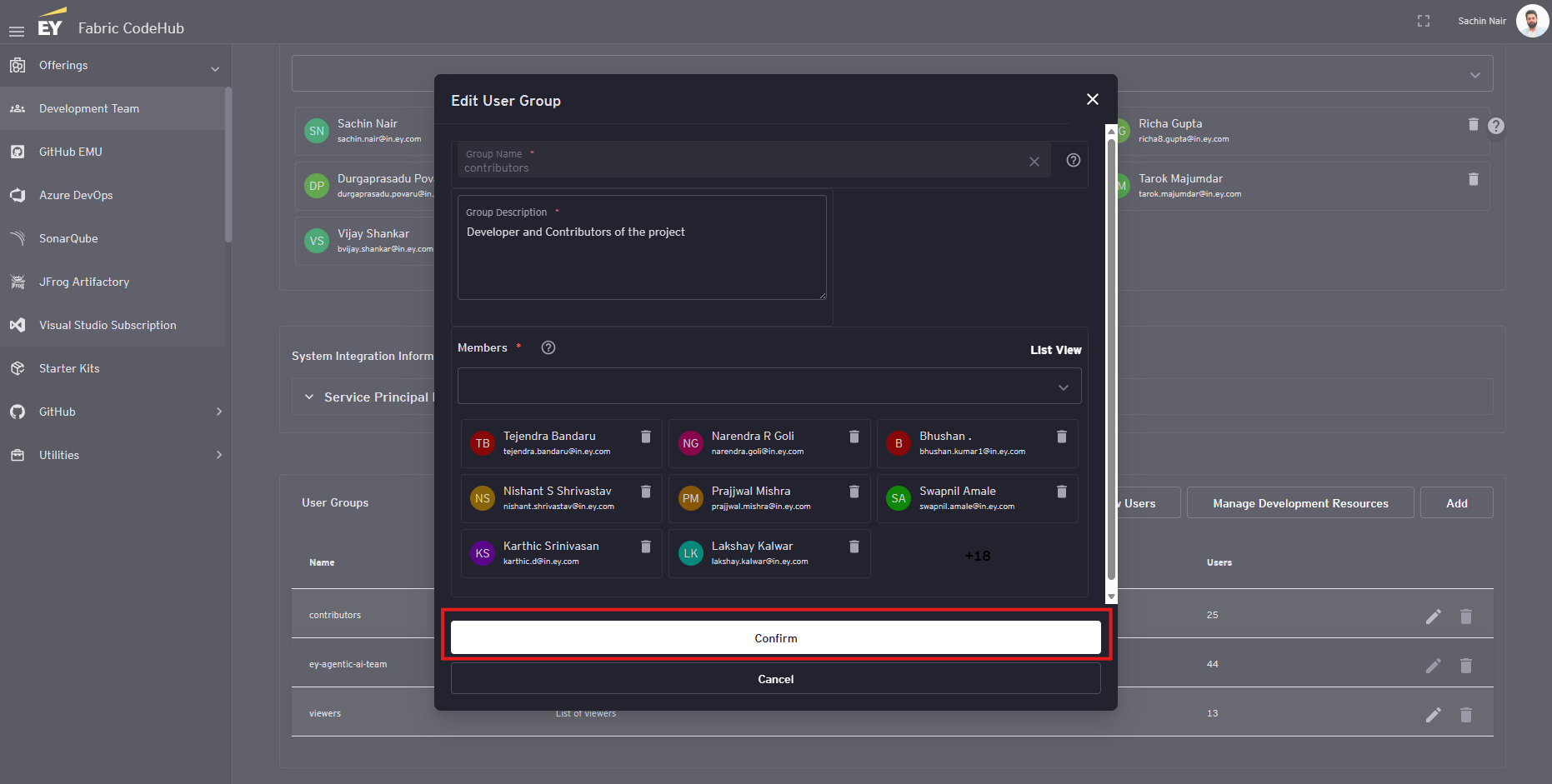
Click on the 'Confirm' button
[](https://ey-bookstack-documentation.kindcoast-f0886029.eastus.azurecontainerapps.io/uploads/images/gallery/2026-04/2Xbimage.png)
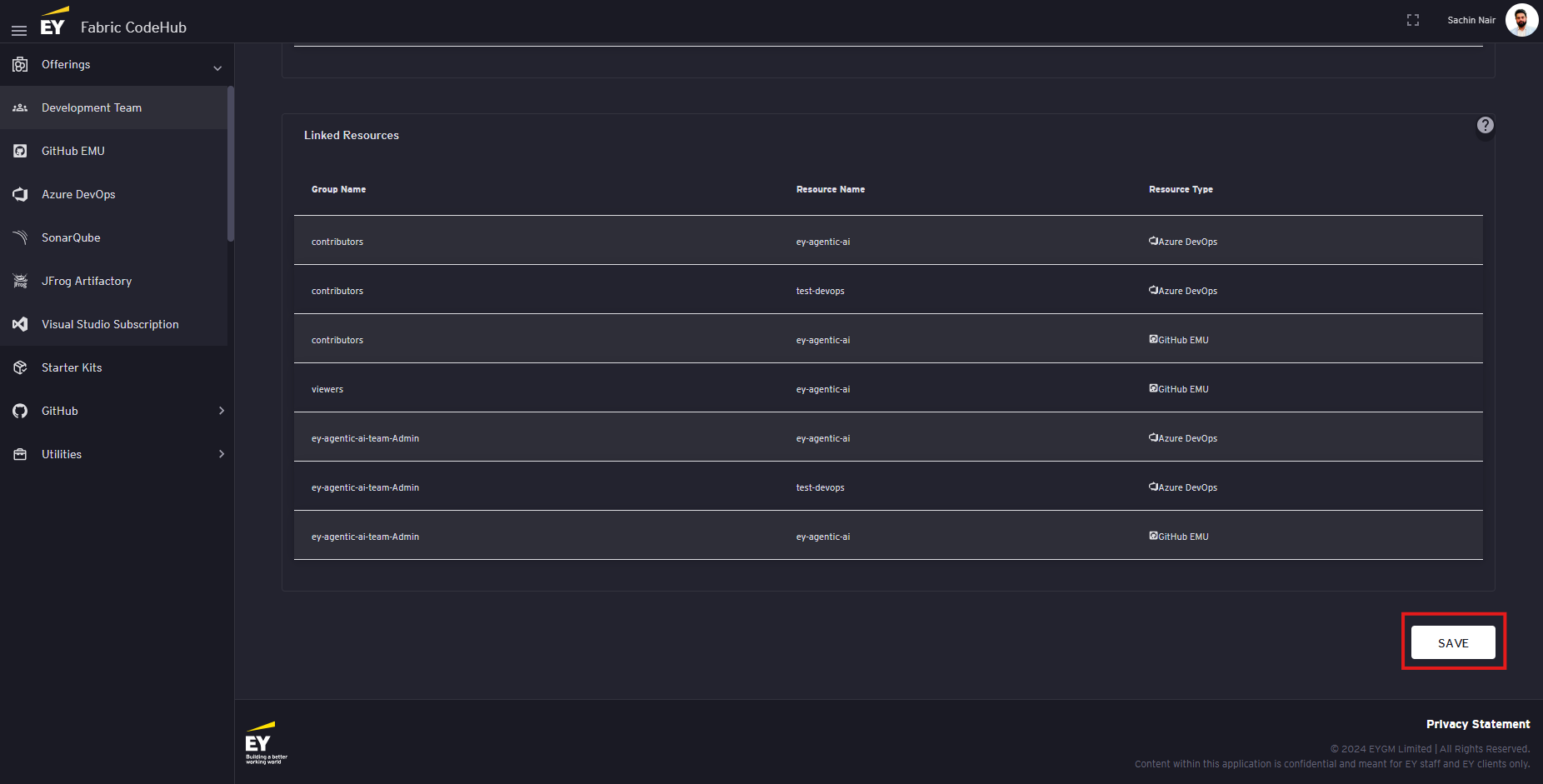
Scroll the bottom of the page and click on the 'Save' button
[](https://ey-bookstack-documentation.kindcoast-f0886029.eastus.azurecontainerapps.io/uploads/images/gallery/2026-04/93gimage.png)
- #### **Wait for 1-2 hour for the account to be created (User)**
Post addition of the user to the development team automatically triggers the automation to create the users GitHub Account and add the user to the EY organization. This process usually gets completed under 1 hour but sometimes we have observed it taking 2-3 hours as well (In worst case scenario it has taken 24 hrs as well).
- #### **Verify the GitHub Access (User)**
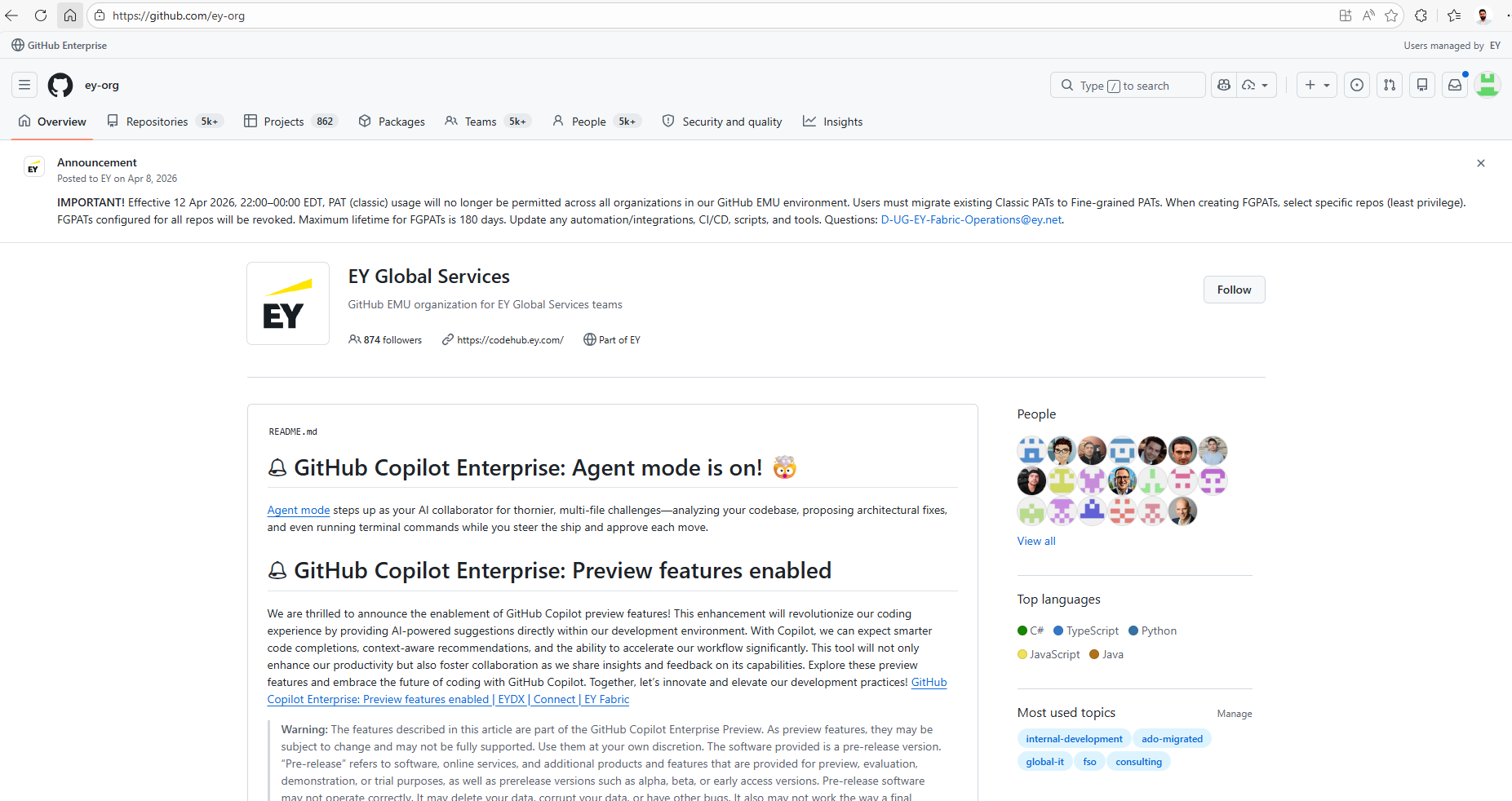
To verify if the account has been created navigate to the following link:
**LINK:** [https://github.com/ey-org](https://github.com/ey-org)
If the user is able to login using the EY Single Sign-On (SSO) then the account has been created and access to EY organization has been granted.
[](https://ey-bookstack-documentation.kindcoast-f0886029.eastus.azurecontainerapps.io/uploads/images/gallery/2026-04/Choimage.png)
# GitHub Copilot Enterprise Access
Guide to raise EY GitHub Copilot Enterprise Access
# Instructions to request Enterprise GitHub Copilot Access
**PREREQUISITE:** A EY GitHub Enterprise account is required for raising Copilot access. The step for requesting and validating GitHub Enterprise account can be found at '[GitHub Enterprise Access](https://ey-bookstack-documentation.kindcoast-f0886029.eastus.azurecontainerapps.io/books/github-github-copilot-access/chapter/github-enterprise-access "GitHub Enterprise Access")' page
- ##### **Navigate to EY Fabric**
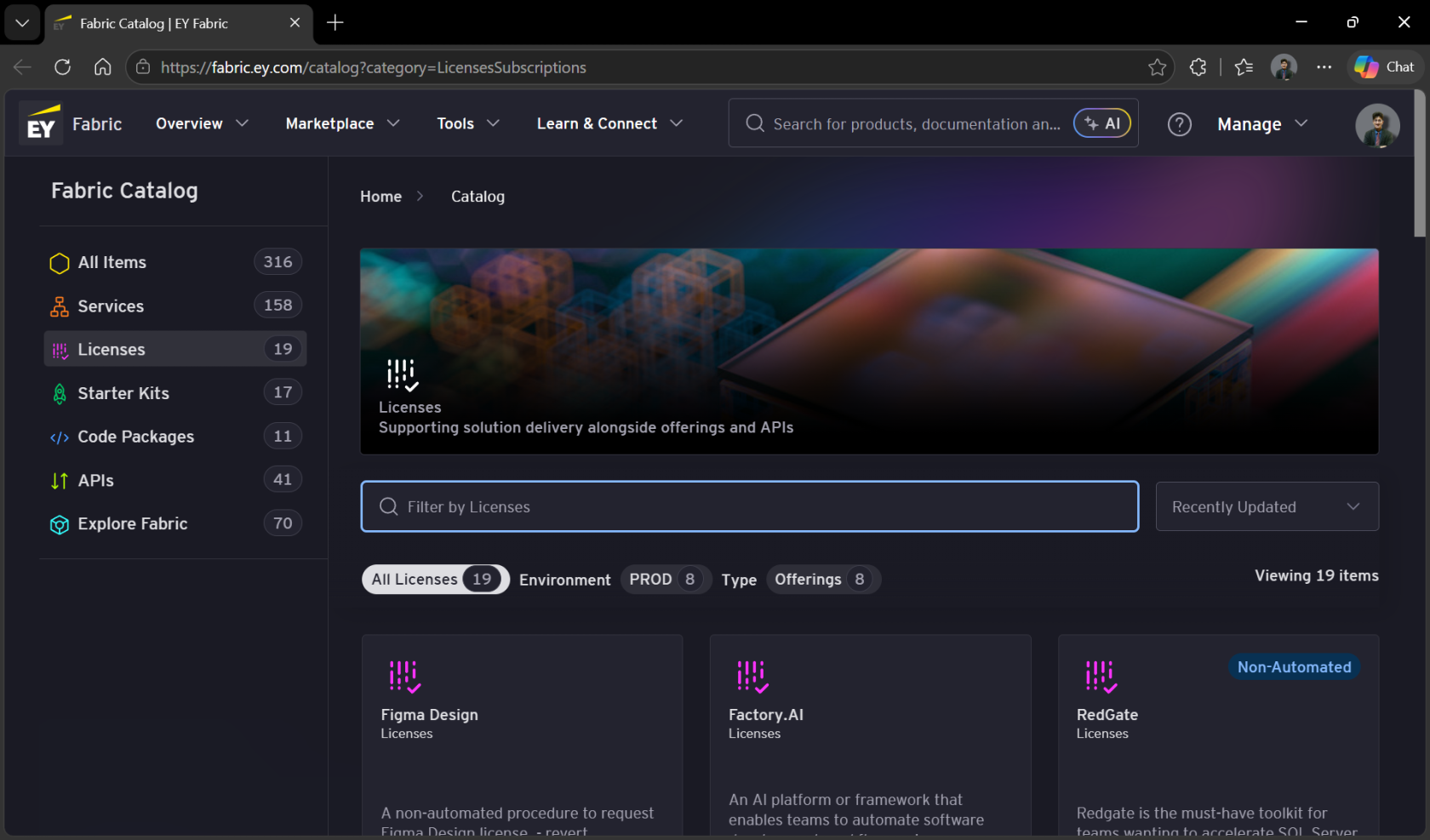
**LINK:** [Fabric Catalog | EY Fabric](https://fabric.ey.com/catalog?category=LicensesSubscriptions)
Navigate to the above link. The webpage should automatically login using the EY Single Sign-On (SSO).
[](https://ey-bookstack-documentation.kindcoast-f0886029.eastus.azurecontainerapps.io/uploads/images/gallery/2026-07/rGaimage.png)
- ##### **Navigate to ‘GitHub Copilot License’ Card**
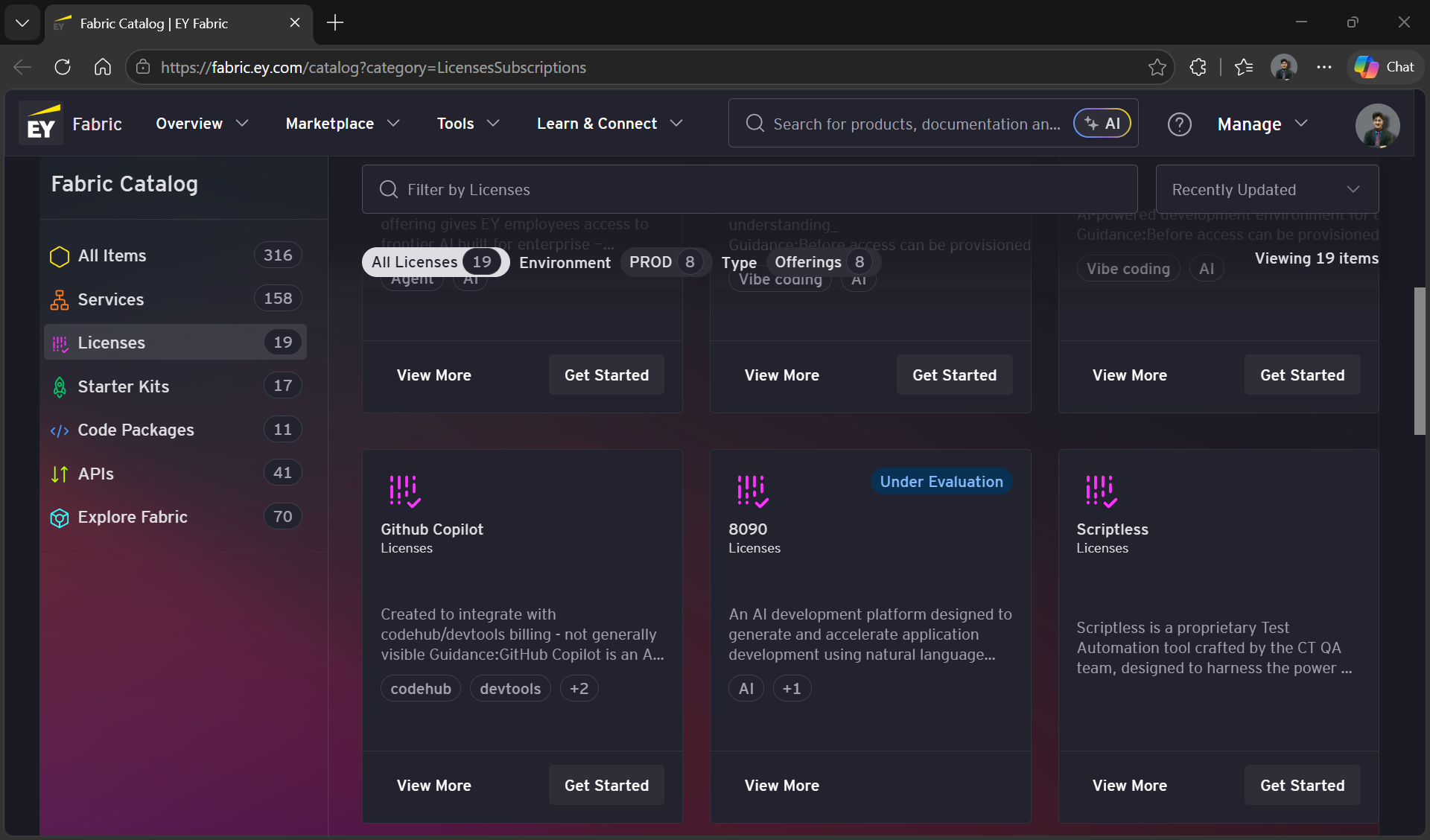
Scroll down to view **Github Copilot License**
[](https://ey-bookstack-documentation.kindcoast-f0886029.eastus.azurecontainerapps.io/uploads/images/gallery/2026-07/TI1image.png)
Click on the ‘Get Started` Button at the bottom of the card. This should open the `License Tool' page in a new tab
[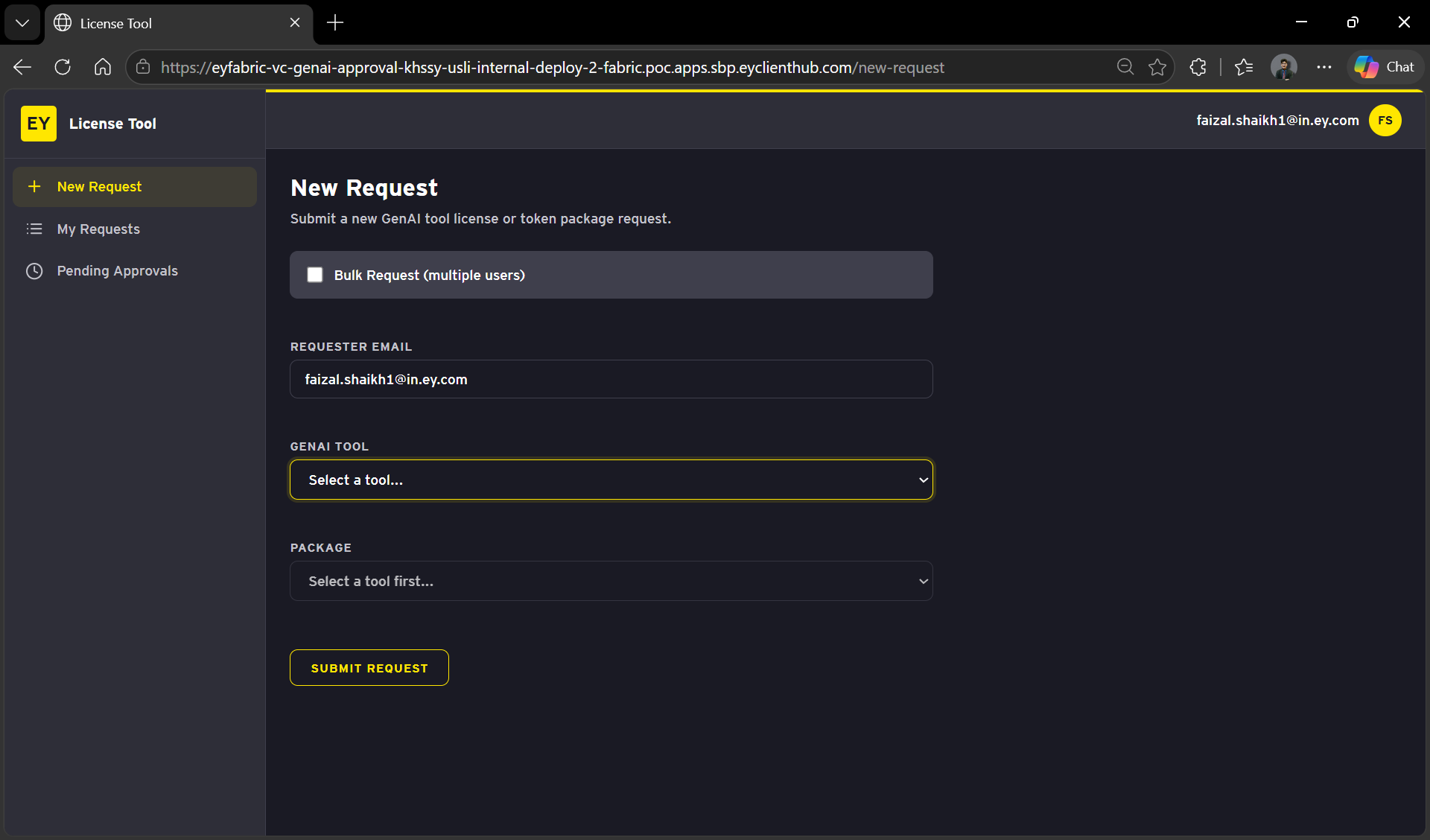](https://ey-bookstack-documentation.kindcoast-f0886029.eastus.azurecontainerapps.io/uploads/images/gallery/2026-07/RUSimage.png)
- ##### Select **Github Copilot** From the GenAI tool dropdown
[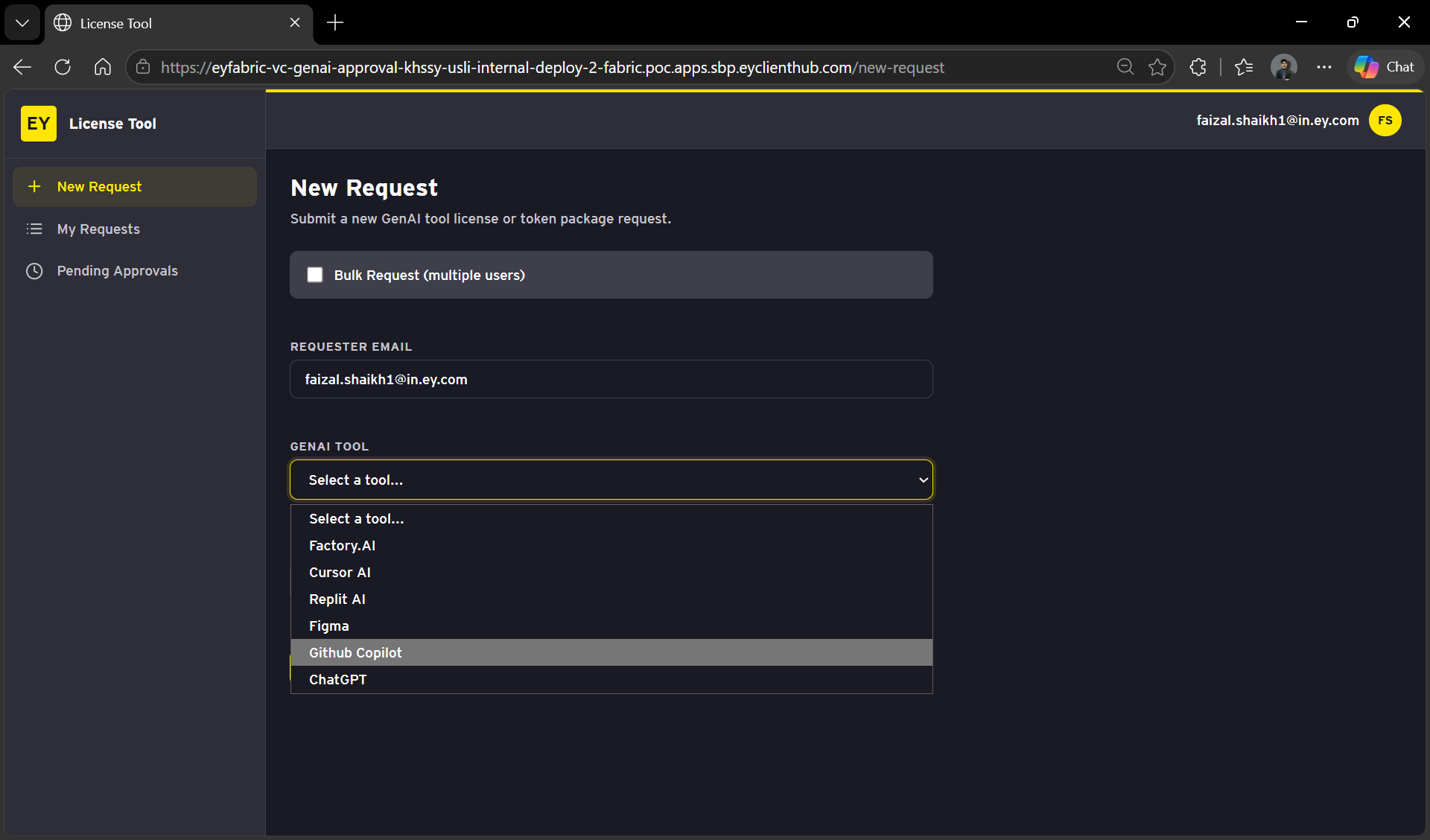](https://ey-bookstack-documentation.kindcoast-f0886029.eastus.azurecontainerapps.io/uploads/images/gallery/2026-07/s7Fimage.png)
- ##### Select **Github Copilot License** From the package
[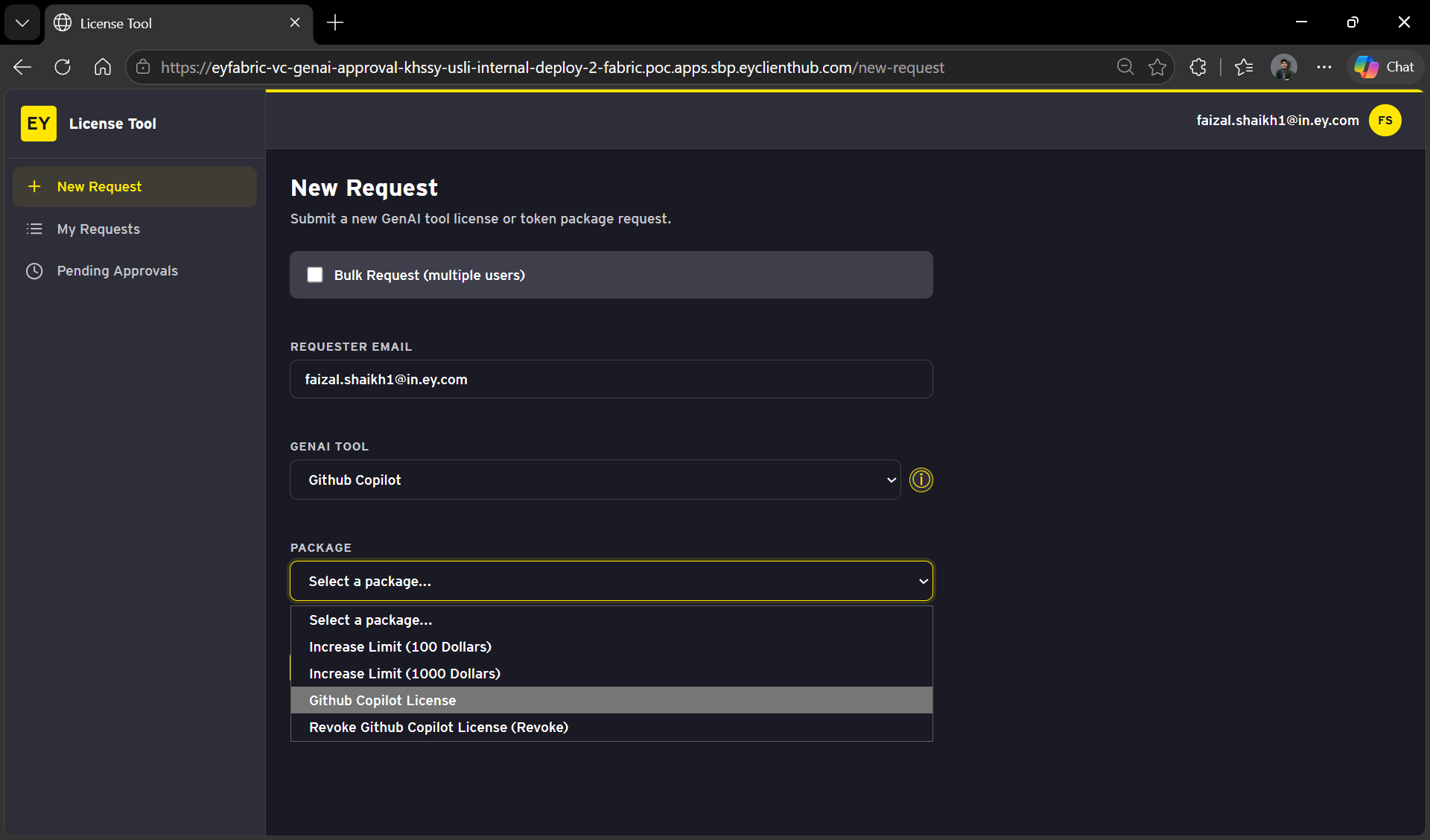](https://ey-bookstack-documentation.kindcoast-f0886029.eastus.azurecontainerapps.io/uploads/images/gallery/2026-07/oadimage.png)
- ##### **Select Your Management Area from the options below**
[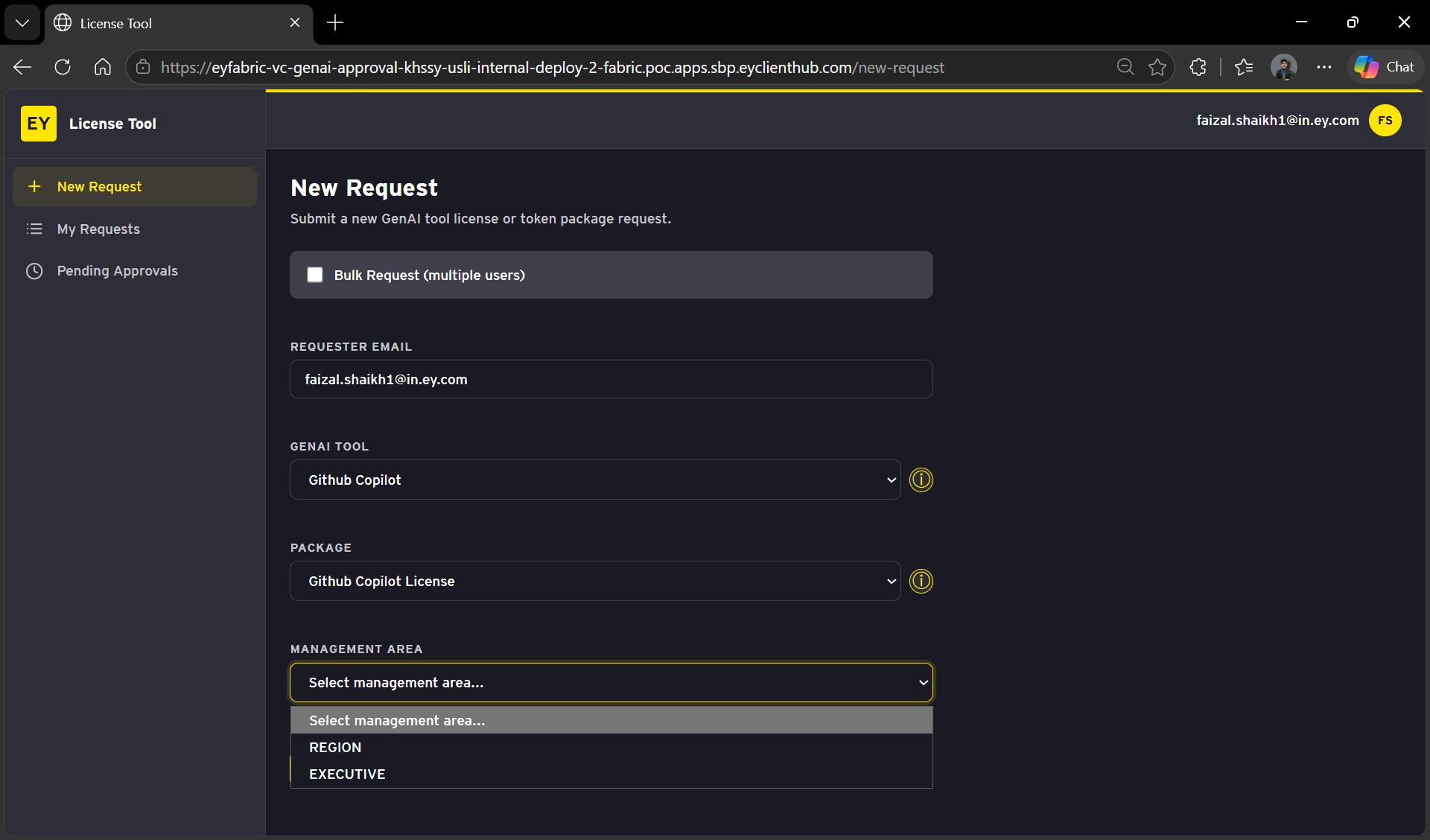](https://ey-bookstack-documentation.kindcoast-f0886029.eastus.azurecontainerapps.io/uploads/images/gallery/2026-07/YNrimage.png)
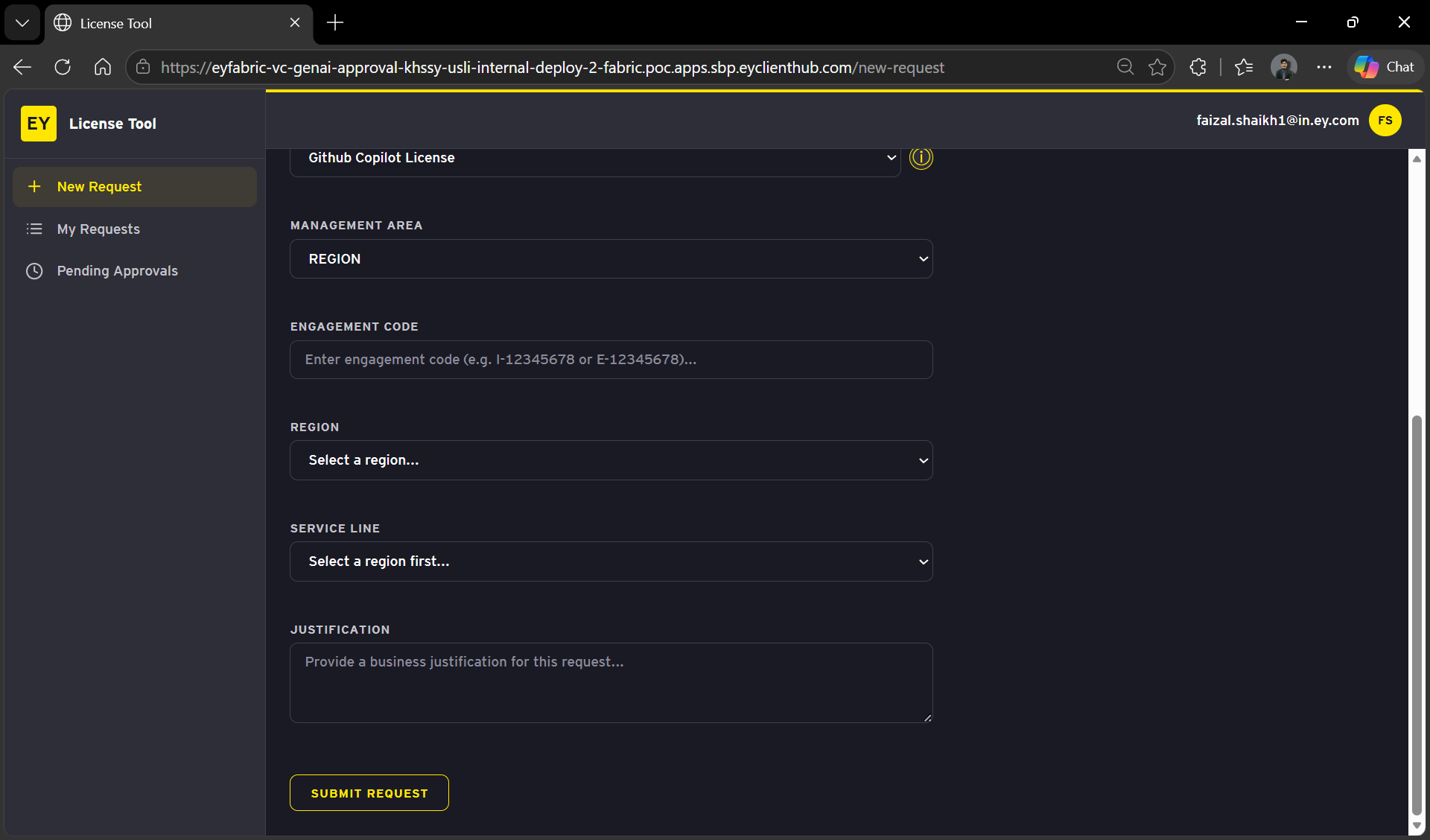
After selecting the area, you will be prompted to enter additional details.
[](https://ey-bookstack-documentation.kindcoast-f0886029.eastus.azurecontainerapps.io/uploads/images/gallery/2026-07/5X9image.png)
Enter the required fields:
- **Engagement Code**
- **Region**
- **Service Line**
- **Business Justification**[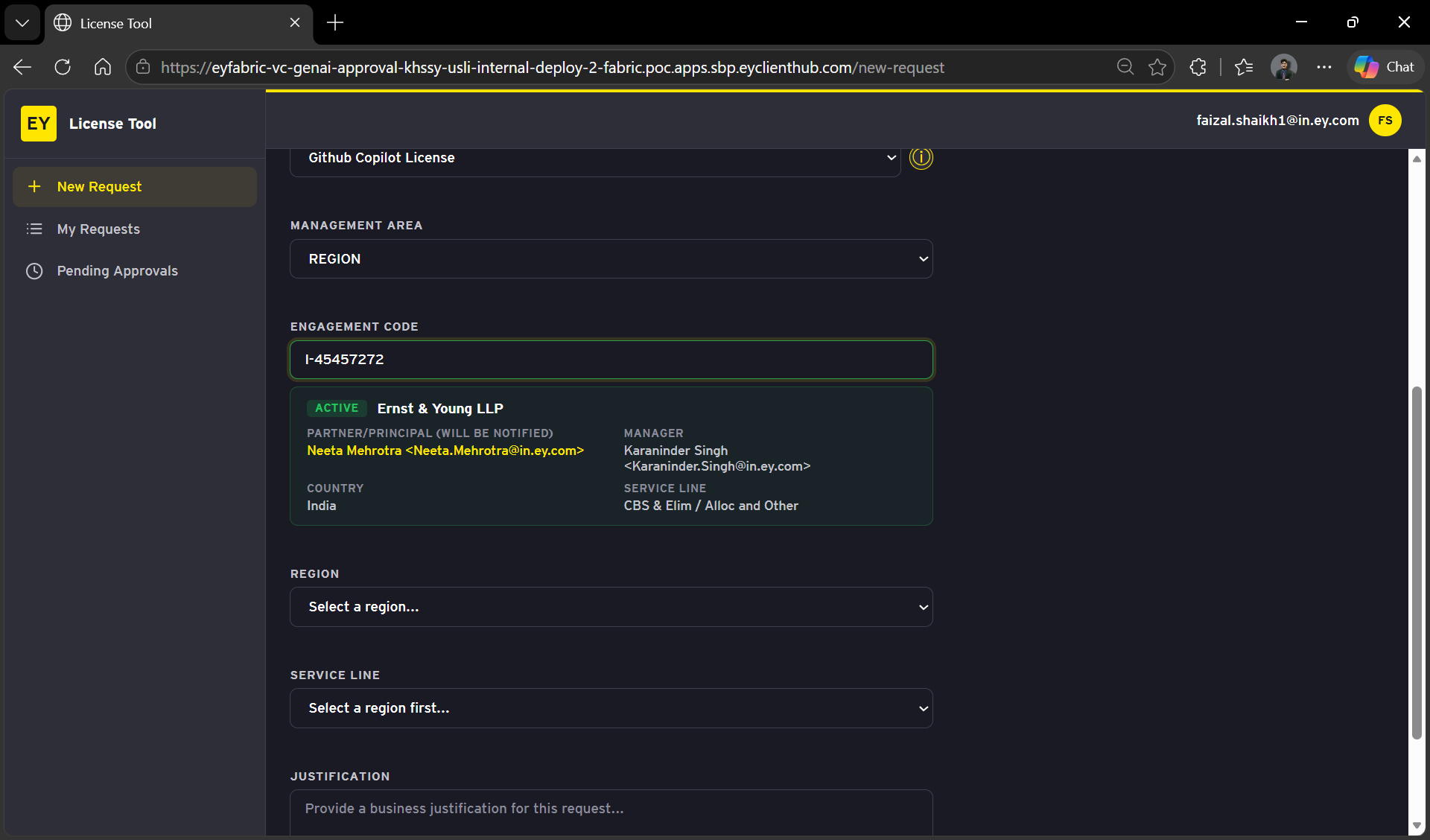](https://ey-bookstack-documentation.kindcoast-f0886029.eastus.azurecontainerapps.io/uploads/images/gallery/2026-07/JGPimage.png)
**NOTE:** A **valid** **billing project with an Engagement Code** is required for GitHub Copilot access
**DISCLAIMER:** Please use your own project code for requesting GitHub Copilot access.
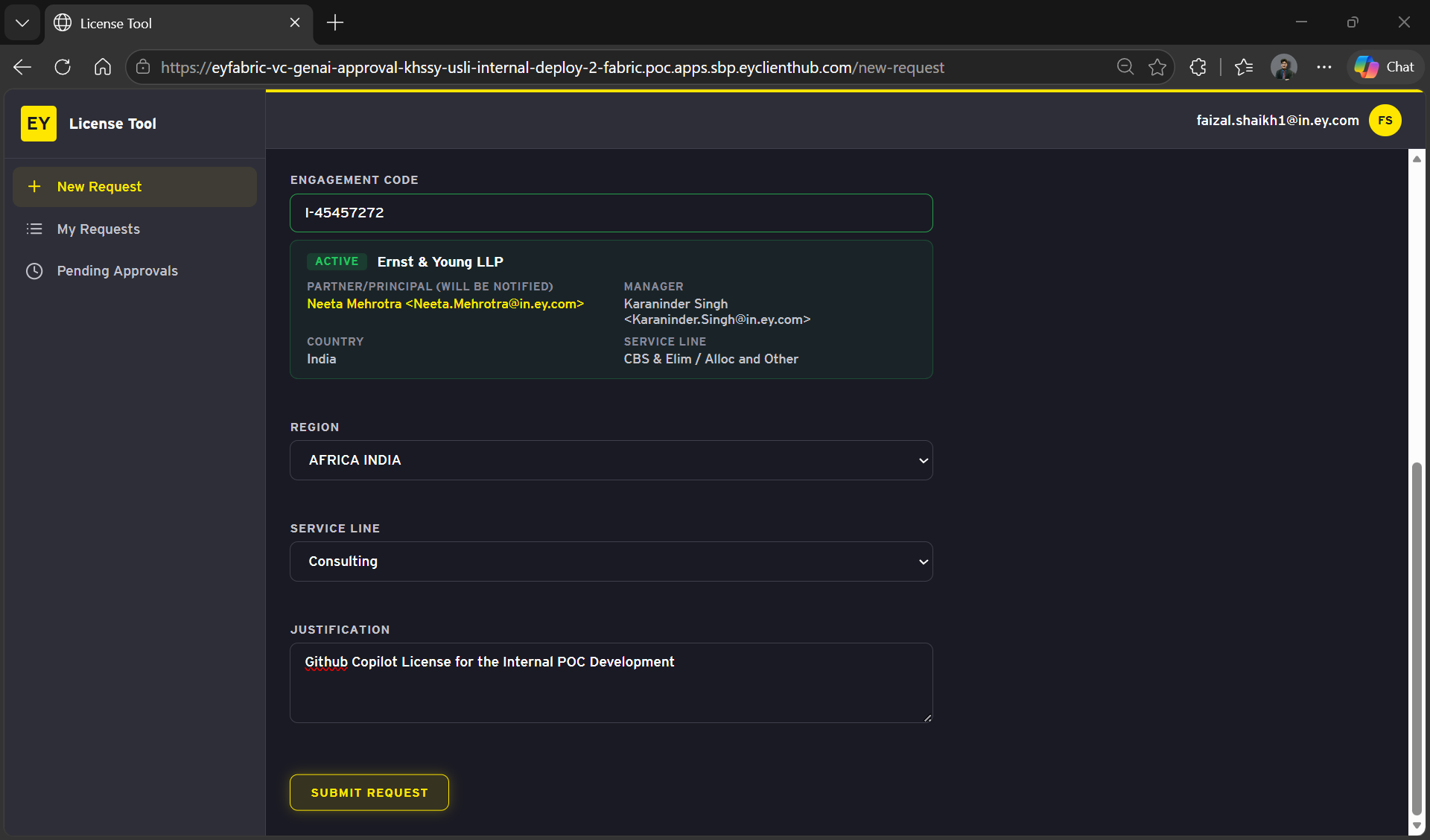
Review the information and proceed with by Clicking `Submit Request`.
[](https://ey-bookstack-documentation.kindcoast-f0886029.eastus.azurecontainerapps.io/uploads/images/gallery/2026-07/uqHimage.png)
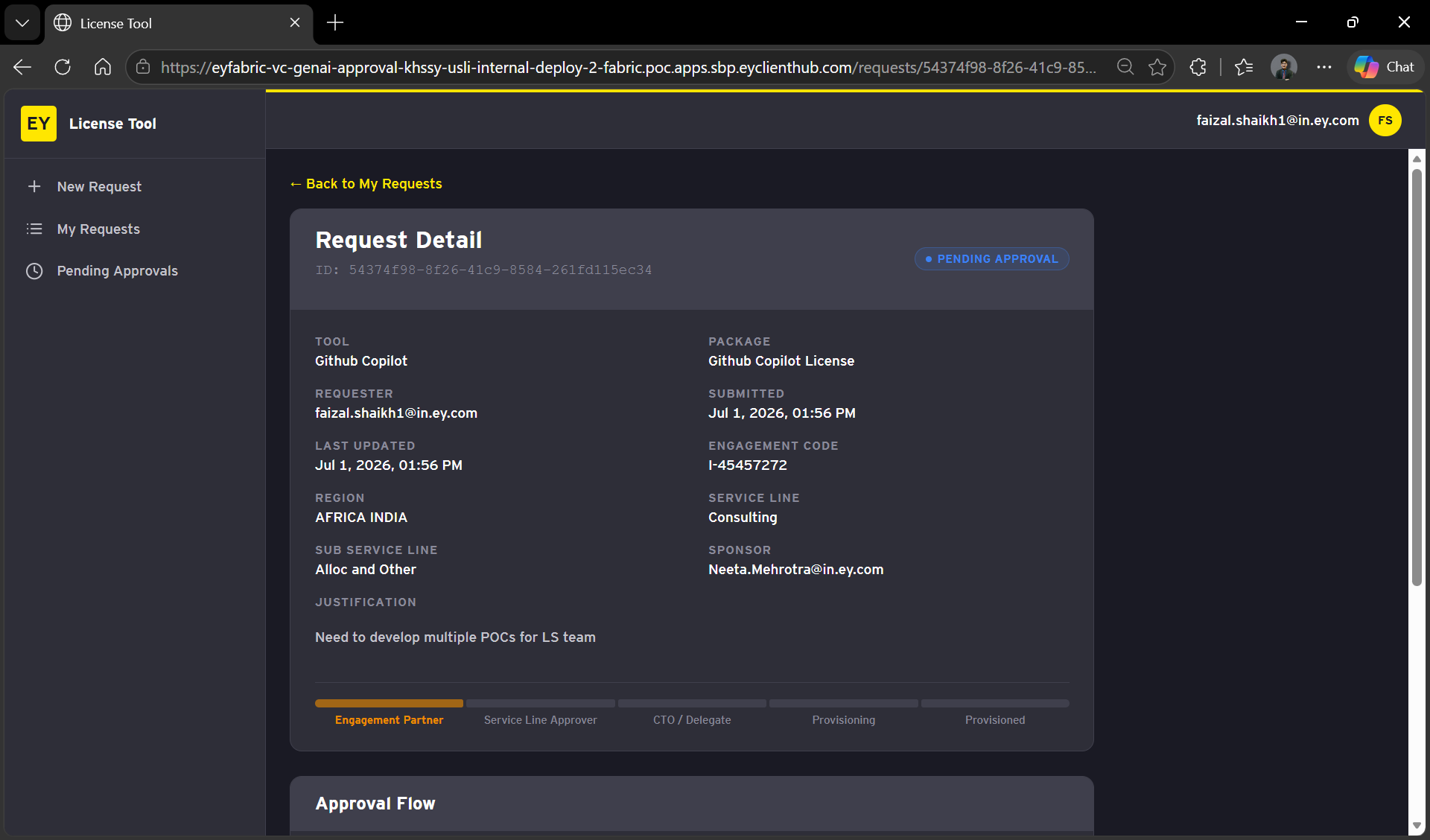
- ##### **Track Request Status**
[](https://ey-bookstack-documentation.kindcoast-f0886029.eastus.azurecontainerapps.io/uploads/images/gallery/2026-07/S4Pimage.png)
After you submit the request, it will appear under [My Requests](https://eyfabric-vc-genai-approval-khssy-usli-internal-deploy-2-fabric.poc.apps.sbp.eyclienthub.com/my-requests).
- ##### **Wait for the access to be provisioned**
Post requesting access to GitHub copilot, the access provisioning usually gets completed within 10-15 minutes but in worse case scenario it might take 45 minutes as well.
- ##### **Verify GitHub Copilot Access**
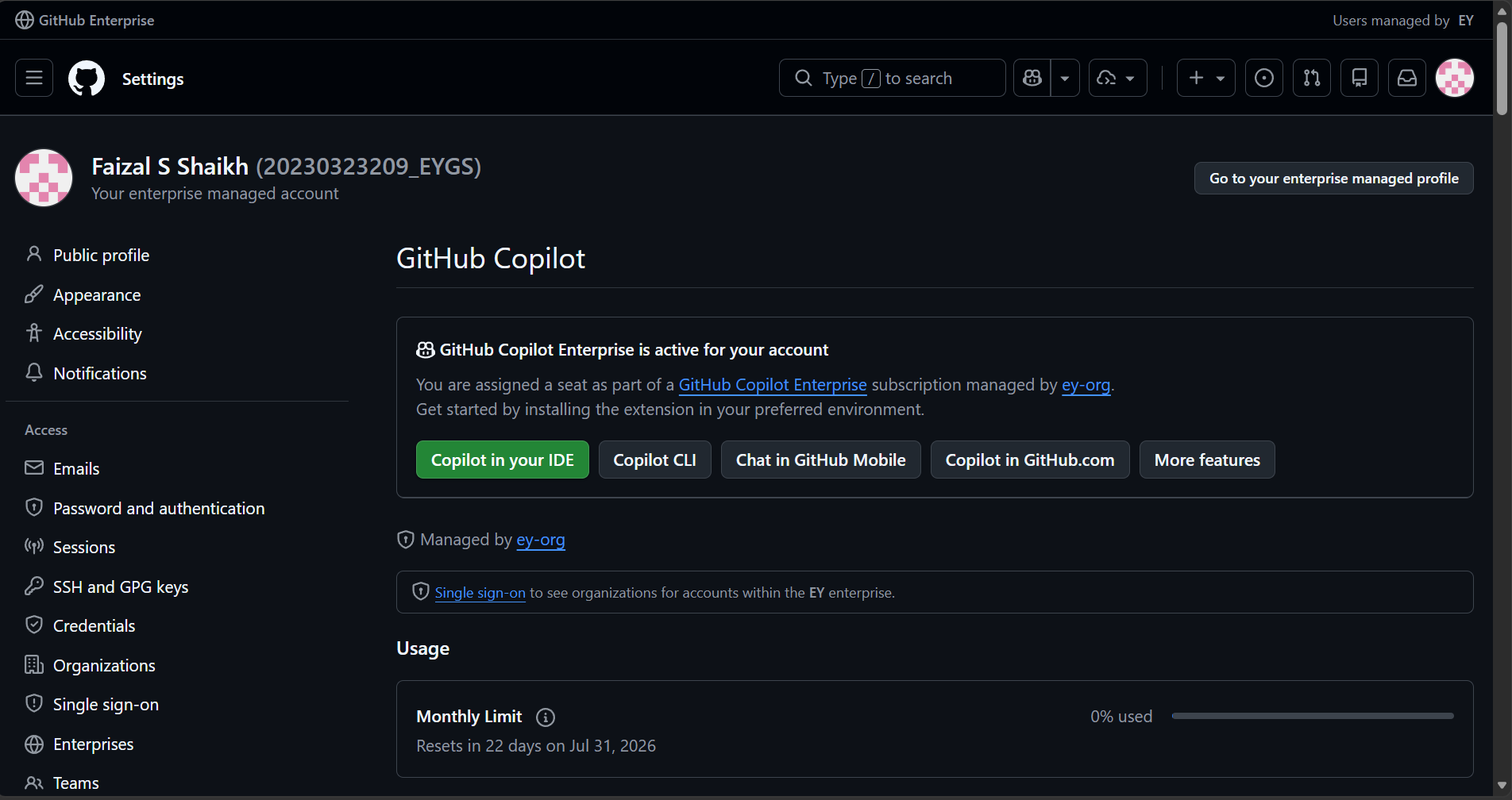
To verify if the GitHub Copilot access has been provided, navigate to the following link:
**LINK:** [**https://github.com/settings/copilot/features**](https://github.com/settings/copilot/features)
User should be able to login using the EY Single Sign-On (SSO)
**If the page mentions 'GitHub Copilot Enterprise is active for your account' then the enterprise access has been provided for your account.**
[](https://ey-bookstack-documentation.kindcoast-f0886029.eastus.azurecontainerapps.io/uploads/images/gallery/2026-07/UMqimage.png)